
Corel PaintShop Pro Photo
Filters: Filters Unlimited 2, XE Xtras / Elementary, Xero / XL Porcelain
Filters: Filters Unlimited 2, XE Xtras / Elementary, Xero / XL Porcelain
1 - Open transparent image 750 x 550.
2 - Fill with color # f2b718. Selections / Select All. Modify / Contract 50 pixels. Edit / Delete. Fill with color # 2748c9. Selections / Modify / Contract 50 pixels. Edit / Delete. Fill with color # ffffff. Selections / Modify / Contract 50 pixels, Edit / Delete. Fill with color # ff24ff. Selections / Modify / Contract 50 pixels. Edit / Delete. Fill with color # 13ffae. Selections / Modify / Collapse 50 pixels. Edit / Delete. Fill with color # ffffff. Selections / Select None.
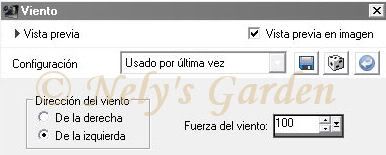
3 - Effects / Distortion Effects / Wind. Right frame, wind force 100.

4 - Layers / Duplicate.
5 - Effects / Distortion Effects / Wind. Left frame, wind force 100.
6 - Layers / Merge visible.
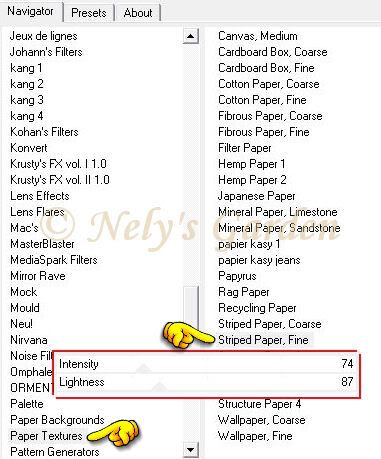
7 - Effects / Plugins / Filters Unlimited 2/Paper Textures / Striped Paper, Fine (74, 87).
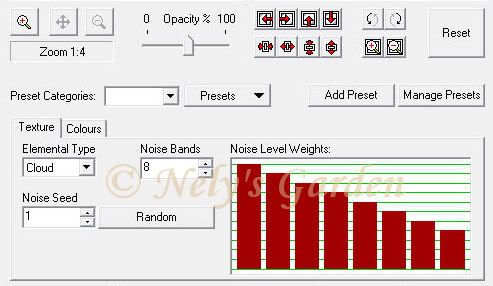
8 - Effects / Plugins / XE Xtras / Elemental.
9 - New raster layer. Selections / Select All.
10 - Open image 23gbznr5. Copy and paste the selection. Change blend mode to Luminance (Legacy) and lower opacity to 56.
11 - Selections / Select None.
12 - Open image mistedballet. Copy and paste as new layer. Image / Resize this layer only 75%. Place on the left. Change blending mode to Exclusion.

13 - Open image mistedballet2. Copy and paste as new layer. Right place. Change blend mode to Multiply and opacity down to 50.
14 - Layers / Duplicate. Change blend mode to Screen and opacity to 100.
15 - Layers / Merge visible.
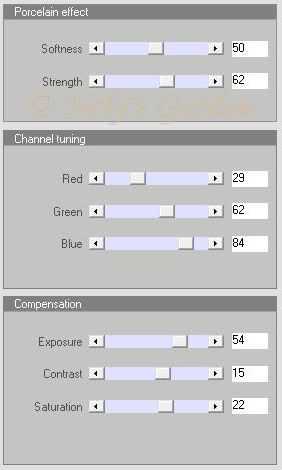
16 - Effects / Plugins / Xero / Porcelain XL.
17 - Open Text. Copy and paste as new layer. Place the bottom right.
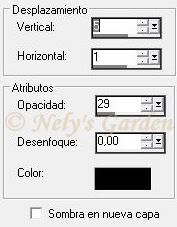
18 - Effects / Effects 3D/Sombra. (5, 1, 29, 0, black).
19 - Place signature or watermark.
20 - Image / Add borders / symmetric 1-pixel, color # 5273db.
21 - Image / Add borders / Symmetric 2 pixels, color # ffea83.
Save in jpg.


0 comments:
Post a Comment